
What a Processor Actually Does
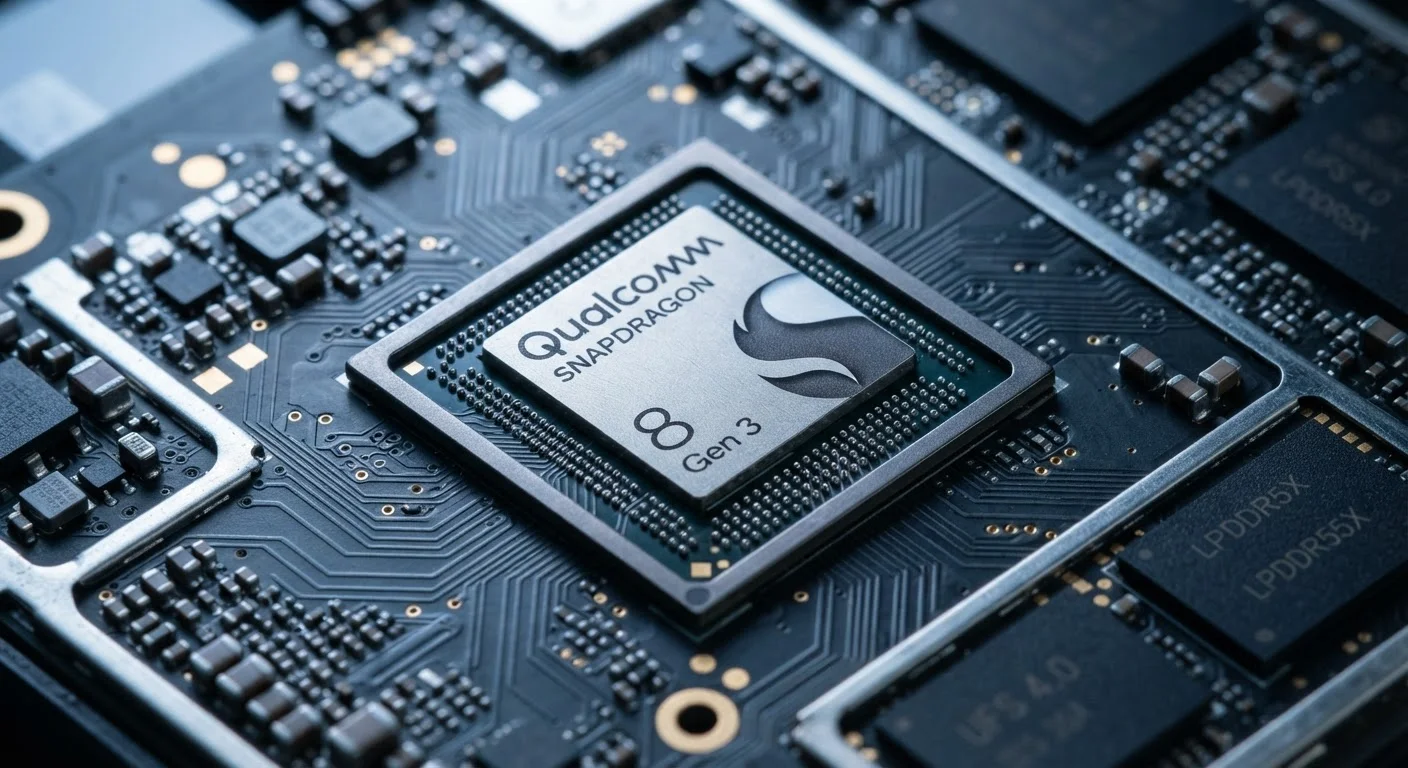
The processor — also called the CPU — is the part of a laptop that carries out instructions. Every time you open a browser tab, run a calculation in a spreadsheet, or load a photo, the CPU is doing the work. Think of it as the brain of the machine.
When reading spec sheets, you'll encounter two main numbers: core count and clock speed (measured in GHz, or gigahertz). Cores are like individual workers inside the CPU — more cores allow the processor to handle multiple tasks in parallel. Clock speed describes how many operations each core can complete per second. A higher number on either isn't automatically better without context.
Generation matters significantly. CPU families are updated regularly, and newer generations are often more efficient even at the same core count or clock speed. A current mid-range chip can outperform an older high-end chip in both speed and battery efficiency. When comparing processors, look at the generation (indicated by the number series in the chip name) alongside the core count.
Prioritize Generation Over Raw Clock Speed
When comparing two processors, check which generation each belongs to before focusing on GHz numbers. A newer chip architecture often delivers better real-world performance and battery efficiency than an older chip with a higher clock speed. Manufacturer product pages typically list the chip series name and generation number in the processor description.
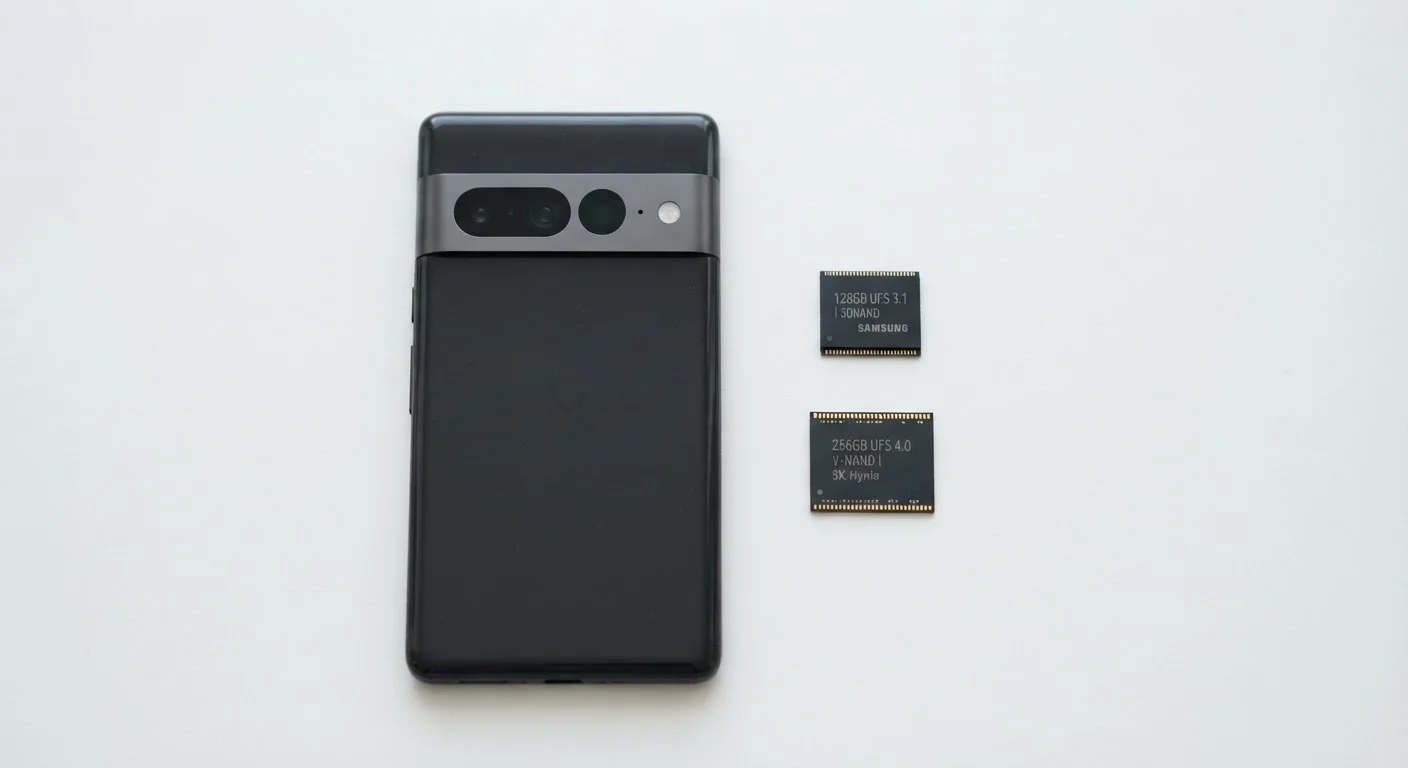
For a look at how this same concept plays out in phones and tablets, the guide to mobile processors explains how chip architecture shapes more than just speed.
RAM: Your Laptop's Short-Term Memory
RAM is not the same thing as storage. It's the workspace your laptop uses while it's running — the place where active programs, open browser tabs, and current files are held so the CPU can access them instantly. When you close a program, it leaves RAM. When you turn off your laptop, everything in RAM is cleared.
The practical effect of RAM is straightforward: more RAM lets you run more things at once without slowdown. With 8 GB, a laptop can handle everyday tasks comfortably, but it may struggle if you keep dozens of browser tabs open alongside a video call and a document editor. With 16 GB, that scenario becomes much more manageable.
RAM also has a speed measurement (usually expressed in MHz or MT/s), though for most everyday users the total capacity matters more than the speed rating. One important note: many current thin laptops have RAM soldered to the motherboard, meaning it cannot be upgraded after purchase. Choosing the right amount upfront matters.
This distinction between RAM and storage trips up many shoppers. For a plain-language breakdown of what each does, this explanation of RAM vs. storage covers the concept clearly — and the same logic applies to laptops.
CPU (Processor)
The central processing unit — the chip that carries out all the instructions your laptop runs. Its speed and core count determine how quickly and how many tasks it can handle at once.
RAM
Random Access Memory — the temporary workspace your laptop uses while running programs. More RAM means you can have more apps and tabs open simultaneously without slowdown.
SSD
Solid-State Drive — a type of storage that uses flash memory chips instead of spinning disks. SSDs are faster, quieter, and more durable than traditional hard drives.
Clock Speed (GHz)
A measure of how many operations a processor core can complete per second. Higher numbers suggest faster processing, but generation and core count also affect real performance.
Resolution
The number of pixels on a screen, expressed as width × height. Higher resolution means sharper, more detailed images and text.
Refresh Rate (Hz)
How many times per second a display updates its image. Higher refresh rates make motion, scrolling, and cursor movement appear smoother.
Storage: Where Your Files Live
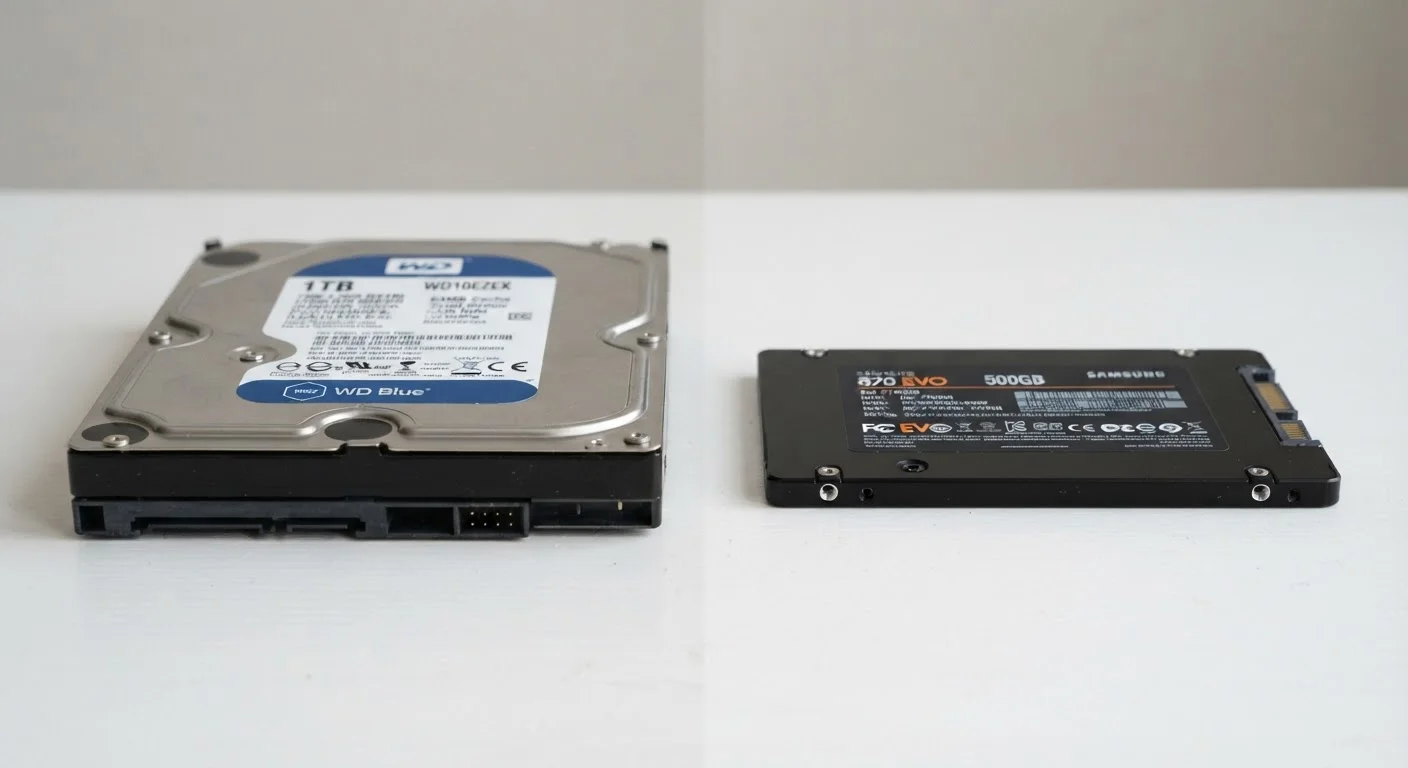
Storage is where your operating system, applications, photos, documents, and downloads permanently reside — even when the laptop is off. The two main technologies you'll encounter are SSD (solid-state drive) and HDD (hard disk drive).
HDDs store data on spinning magnetic platters. They're slower, more susceptible to physical damage from drops, and produce more heat. SSDs store data on flash memory chips with no moving parts. They're significantly faster at reading and writing data, more durable, and quieter. Most new laptops ship with SSDs as the default, and for good reason — the speed difference is immediately noticeable during startup and when opening apps.
Storage capacity is measured in gigabytes (GB) and terabytes (TB). For a general-use laptop, 256 GB is a workable minimum, though 512 GB gives considerably more room for photos, downloads, and applications without requiring constant file management. If you work with large video files or a substantial media library, 1 TB provides more comfort.
For a deeper comparison of these two storage types and how they behave in real use, see our SSD vs. HDD guide.
Display Specs Worth Paying Attention To
The display is the part of a laptop you interact with every minute of use, yet it's one of the most overlooked aspects of the spec sheet. A few numbers make a meaningful difference in daily comfort.
Resolution describes how many pixels the screen contains — expressed as width × height (e.g., 1920×1080). A higher resolution means sharper, crisper text and images. Full HD (1920×1080) is the practical standard for most 13–15 inch laptops. On larger screens, resolution starts to matter more. Our glossary of screen resolution terms explains HD, FHD, QHD, and 4K in plain language.
Refresh rate, measured in Hz, describes how many times per second the screen updates its image. A 60 Hz panel is adequate for document work and video streaming. A 120 Hz panel makes scrolling and cursor movement feel noticeably smoother — a difference that's especially appreciated during long work sessions.
Panel type (IPS, OLED, TN) affects color accuracy, viewing angles, and contrast. IPS panels offer good color and wide viewing angles at a moderate cost. OLED panels deliver superior contrast and color depth but tend to appear at higher price points.
How These Specs Work Together
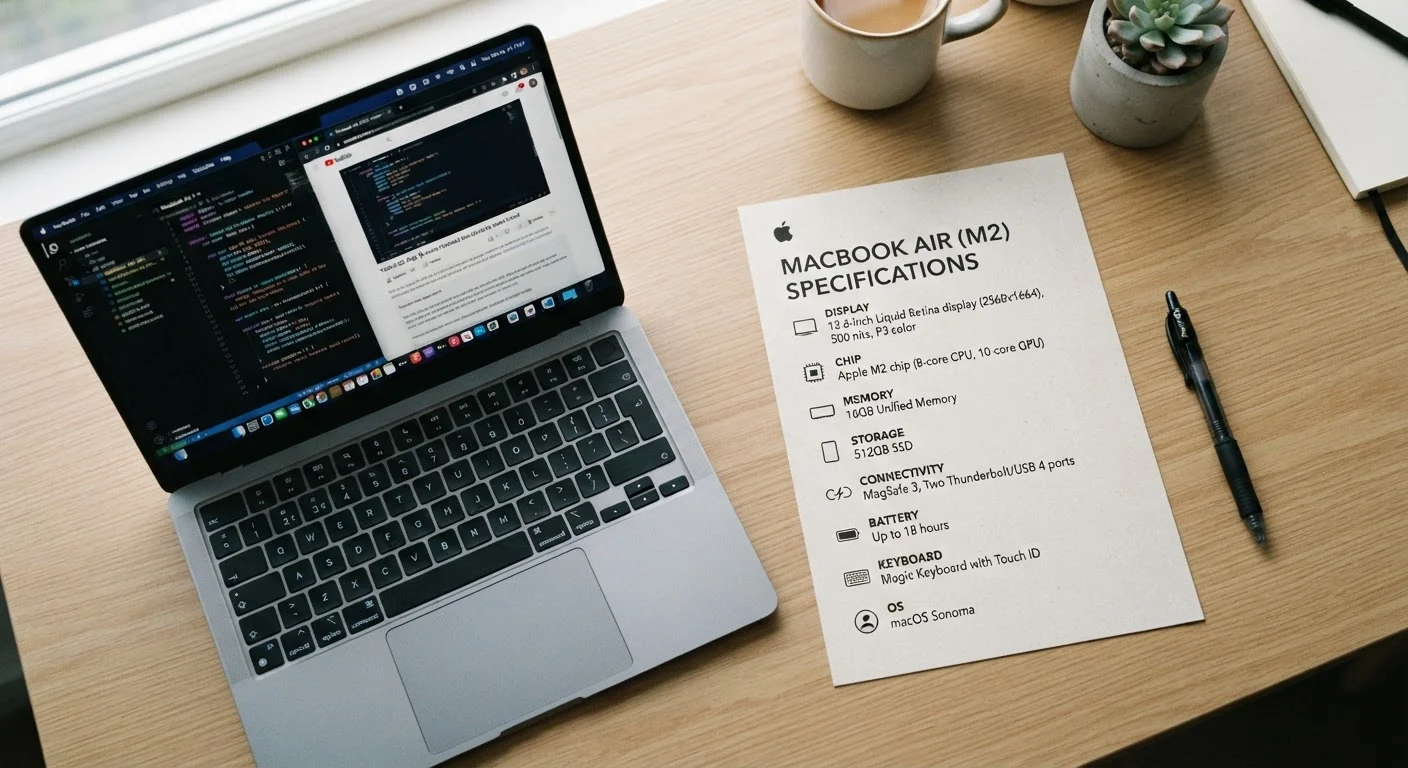
Reading specs in isolation gives you only part of the picture. A laptop with a powerful CPU but very little RAM will slow down noticeably when you multitask. A large SSD paired with a low-end processor won't feel fast — your files open quickly, but processing tasks still lag. Balance across the main specs matters more than maximizing any single one.
A practical way to think about it: the CPU sets the ceiling on how demanding a task can get; RAM determines how many things you can do simultaneously before performance degrades; and storage affects how quickly the system starts up and how long file operations take. The display affects comfort and usability throughout the day, especially if you spend hours in front of it.
Understanding these relationships helps you evaluate whether a spec sheet describes a laptop suited to your actual habits — not just an impressive number on a box. For a related look at how device form factor affects these decisions, this guide to choosing between a tablet and laptop walks through the real-world tradeoffs.
Once you've chosen a laptop, a few consistent habits can help it stay useful longer. Maintenance practices around storage, heat, and software make a measurable difference over time.