
How Each Drive Actually Works
Understanding why SSDs and HDDs behave differently starts with knowing how they store data under the hood — no technical background required.
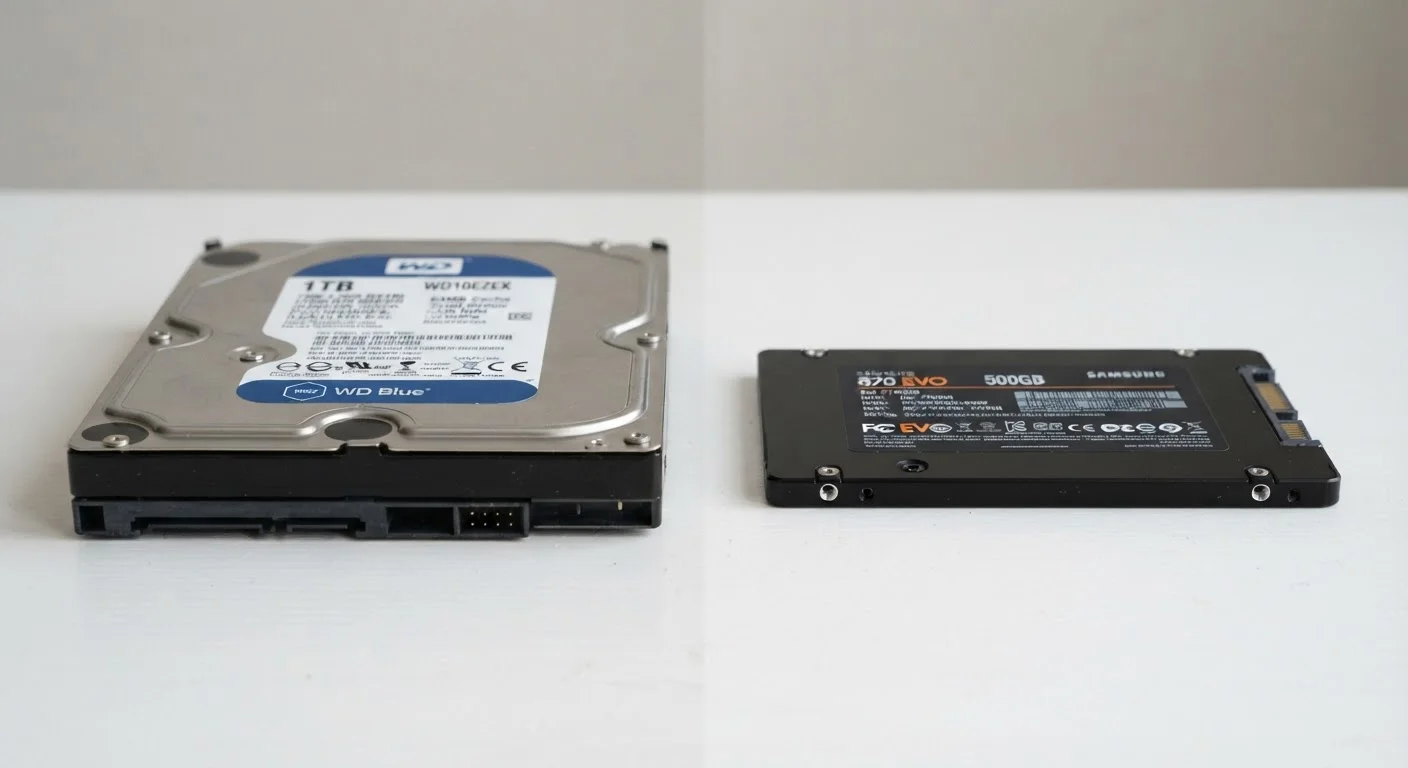
A hard disk drive (HDD) stores data on spinning magnetic platters, much like a vinyl record. A mechanical read/write head moves back and forth across the platter surface to find and record information. That physical movement takes time, and it introduces noise and vibration. It also means the drive has components that can wear out or be jarred loose if your computer takes a bump.
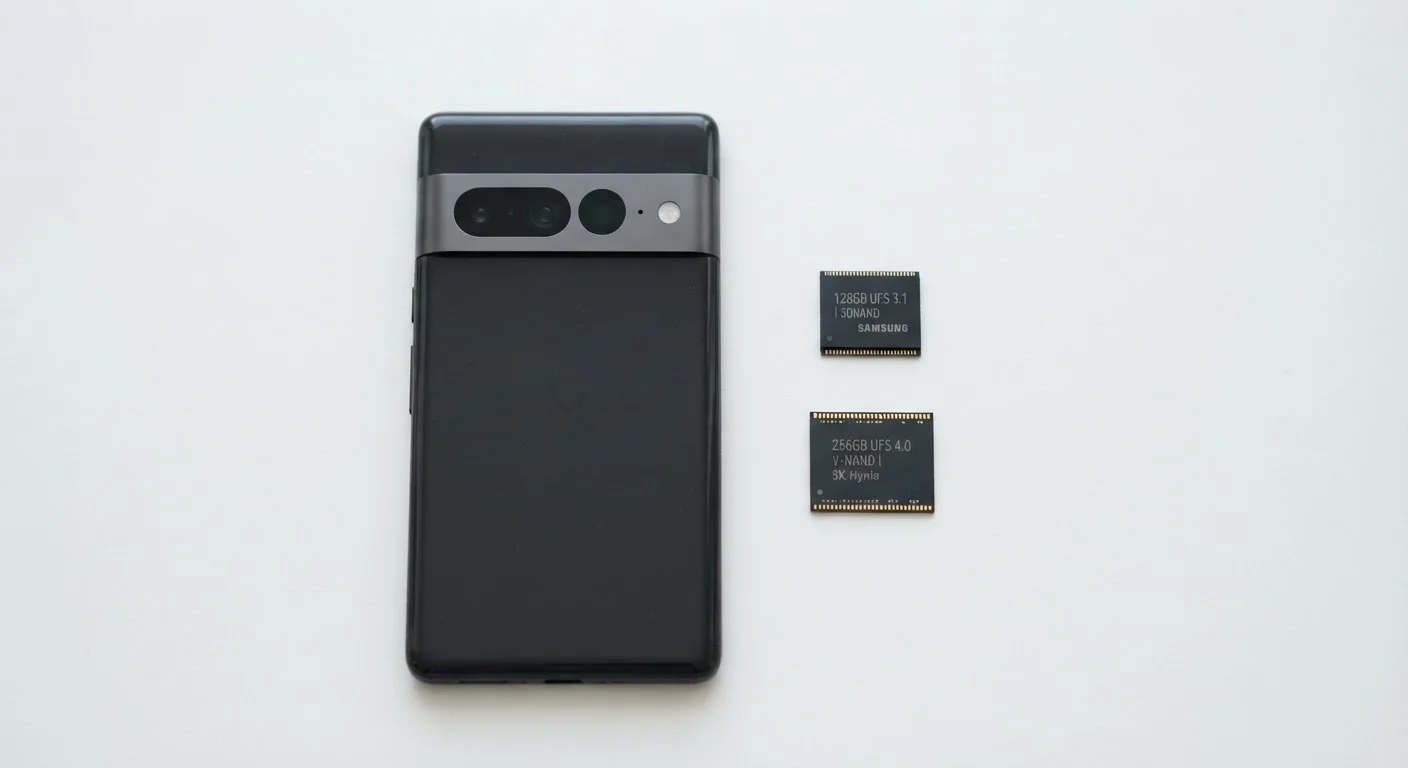
A solid-state drive (SSD), by contrast, stores data on interconnected flash memory chips — the same fundamental technology found in USB thumb drives, just much faster and more sophisticated. There are no spinning disks, no moving heads, and no mechanical latency. The drive accesses data almost instantly by reading electrical signals from memory cells.
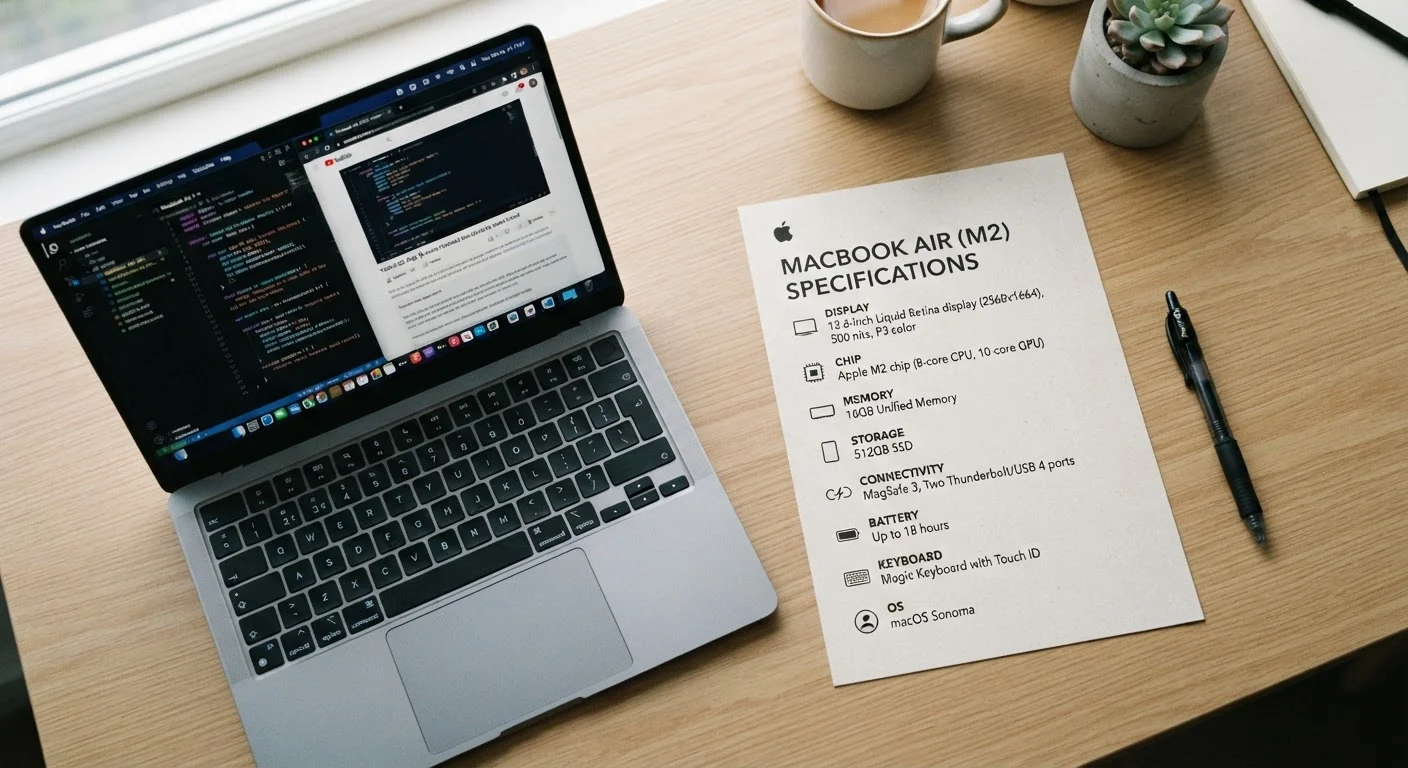
This structural difference is why SSDs feel so much snappier. When you open an app or boot your computer, an SSD can locate and deliver that data many times faster than an HDD. For a deeper look at how storage fits alongside other laptop specs, including processors and RAM, that broader context helps clarify why storage type matters so much for overall performance.
Speed, Durability, and Capacity: The Key Tradeoffs
For everyday users, three practical dimensions drive the SSD vs. HDD decision: how fast the drive is, how well it holds up physically, and how much data it can hold for the money.
| Criterion | HDD | SSD |
|---|---|---|
| How it stores data | Spinning magnetic platters | Flash memory chips (no moving parts) |
| Typical read speed | 80–160 MB/s | 400–3,500+ MB/s |
| Boot time (approximate) | 30–60 seconds | 10–20 seconds |
| Shock/drop resistance | Vulnerable to physical damage | Resistant — no moving parts |
| Noise and vibration | Audible spinning and clicking | Completely silent |
| Cost per gigabyte | Lower (more storage per dollar) | Higher, but gap is narrowing |
| Common use today | External drives, desktop storage | Primary drive in most new laptops |
Speed
In daily use, the speed gap between SSDs and HDDs is genuinely noticeable. A typical HDD reads data at roughly 80–160 megabytes per second. A mainstream SATA SSD (the most common type in consumer laptops) reads at 400–550 MB/s. Higher-end NVMe SSDs — a newer interface standard — can reach several thousand MB/s. For tasks like booting Windows, launching a browser, or opening a large spreadsheet, SSD users experience this as seconds instead of half a minute or more.
Durability
Because HDDs depend on spinning platters and a mechanical arm, a significant drop or sharp jolt can scratch the platter surface or displace the read/write head — resulting in data loss. SSDs have no such vulnerability to physical shock, making them a considerably safer choice inside a laptop that travels. This is a meaningful real-world consideration; data recovery from a mechanically failed HDD can be costly and is not always successful.
Capacity and Value
HDDs still hold an advantage in raw storage per dollar. As a general rule, HDD storage costs less per gigabyte than SSD storage, though the price gap has narrowed considerably over time. If your household stores thousands of home videos, high-resolution photos, or large game libraries, an HDD — particularly as a secondary or external drive — stretches your storage budget further.
What This Means for Your Computer in Practice
Most modern laptops ship with SSDs as standard, particularly at mid-range and higher price tiers. Desktop computers sometimes offer larger HDDs as primary or secondary storage. External hard drives — used for backups or extra space — are still predominantly HDD-based because capacity and price matter more than speed in that role.
If you have an older laptop that feels sluggish, the storage drive is often a key factor. Computers built several years ago commonly used HDDs, and replacing one with an SSD is frequently cited by technicians as one of the most impactful single upgrades available for aging hardware. Maintaining your laptop well — including keeping storage healthy — also plays a role in how long the machine stays usable.
Storage Capacity Is a Separate Choice
Choosing an SSD over an HDD is a decision about speed and durability — not about how much space you get. Both drive types come in a range of capacities, typically from 250 GB up to several terabytes for consumer use. You can have a large, fast SSD or a small, slow HDD; the type and the size are independent variables. When comparing computers or drives, check both the drive type and the total capacity listed in the specifications.
It is also worth noting that storage type is separate from storage amount. An SSD and an HDD can each be available in capacities from a few hundred gigabytes to several terabytes. Choosing an SSD does not mean accepting less space — it means paying somewhat more per gigabyte for that space. Understanding storage versus RAM is another related concept worth clarifying if you are comparing specs across devices.
4–6×
Faster typical read speed: SSD vs. HDD
Mainstream SATA SSDs read data at roughly 4 to 6 times the speed of a typical consumer HDD under everyday workloads.
0
Moving parts inside an SSD
SSDs store data entirely in flash memory chips, eliminating the mechanical components that make HDDs susceptible to shock damage.
~10 sec
Typical SSD boot time for a modern OS
Computers with SSDs commonly reach a usable desktop in under 15 seconds; comparable HDD-equipped machines often take 30–60 seconds or longer.