
Why Maintenance Matters More Than Specs
Most laptops don't fail dramatically — they slow to a crawl. A machine that felt fast when you unboxed it starts struggling with tasks it handled easily before. In many cases, the hardware is fine; it's accumulated heat damage, storage pressure, and software bloat doing the real harm.
Understanding what actually degrades a laptop — rather than what just feels like it does — lets you protect your investment with minimal effort. Think of it the way you'd think about car maintenance: small, regular upkeep prevents expensive repairs down the road. The same logic applies to smart spending on electronics — a laptop that lasts six years instead of three is effectively half the cost.
The habits below are grounded in how the hardware actually works. None require technical skills or special tools.
Thermal Management: Keep It Cool
Heat accelerates the wear of every component inside a laptop — the processor, RAM, storage drive, and especially the battery. When a processor gets too hot, it automatically slows itself down in a process called thermal throttling. You experience this as sluggishness, not as a warning light.
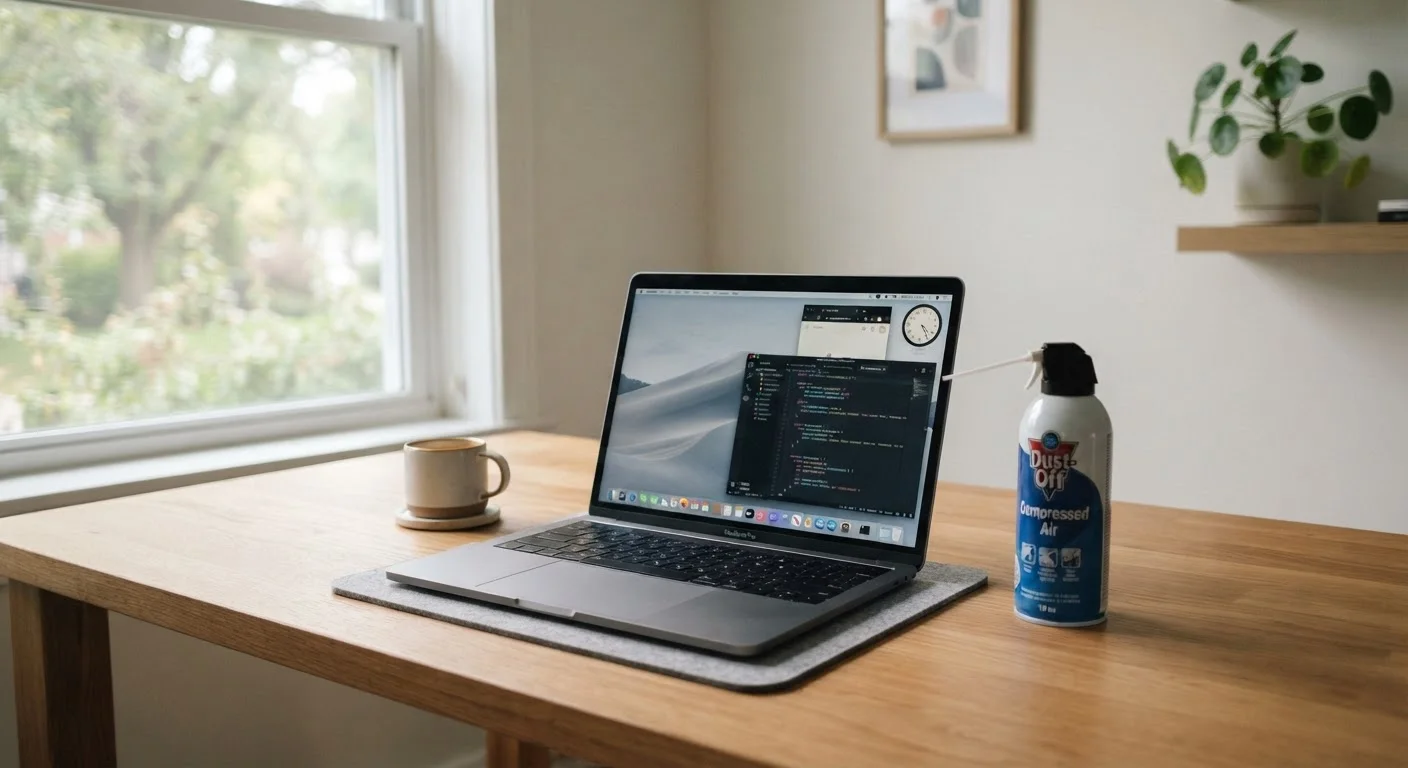
The most effective thing you can do is keep vents unobstructed. Pillows, blankets, and laps all block airflow. A hard, flat surface — even a book — makes a real difference. Every few months, use a can of compressed air to blow dust out of the exhaust vents; dust acts as insulation, trapping heat inside the chassis.
When to Call a Technician About Heat
If your laptop runs hot even during light tasks — browsing, document editing — the thermal paste between the processor and its heatsink may have dried out over years of use. A qualified technician can replace it for a modest fee. This single repair can restore normal operating temperatures and extend the useful life of the machine by several years.
If your laptop runs hot even during light tasks, the thermal paste between the processor and its heatsink may have dried out. This is a repair most computer technicians can perform for a modest fee, and it can restore normal temperatures significantly.
Storage and Software Habits That Protect Performance
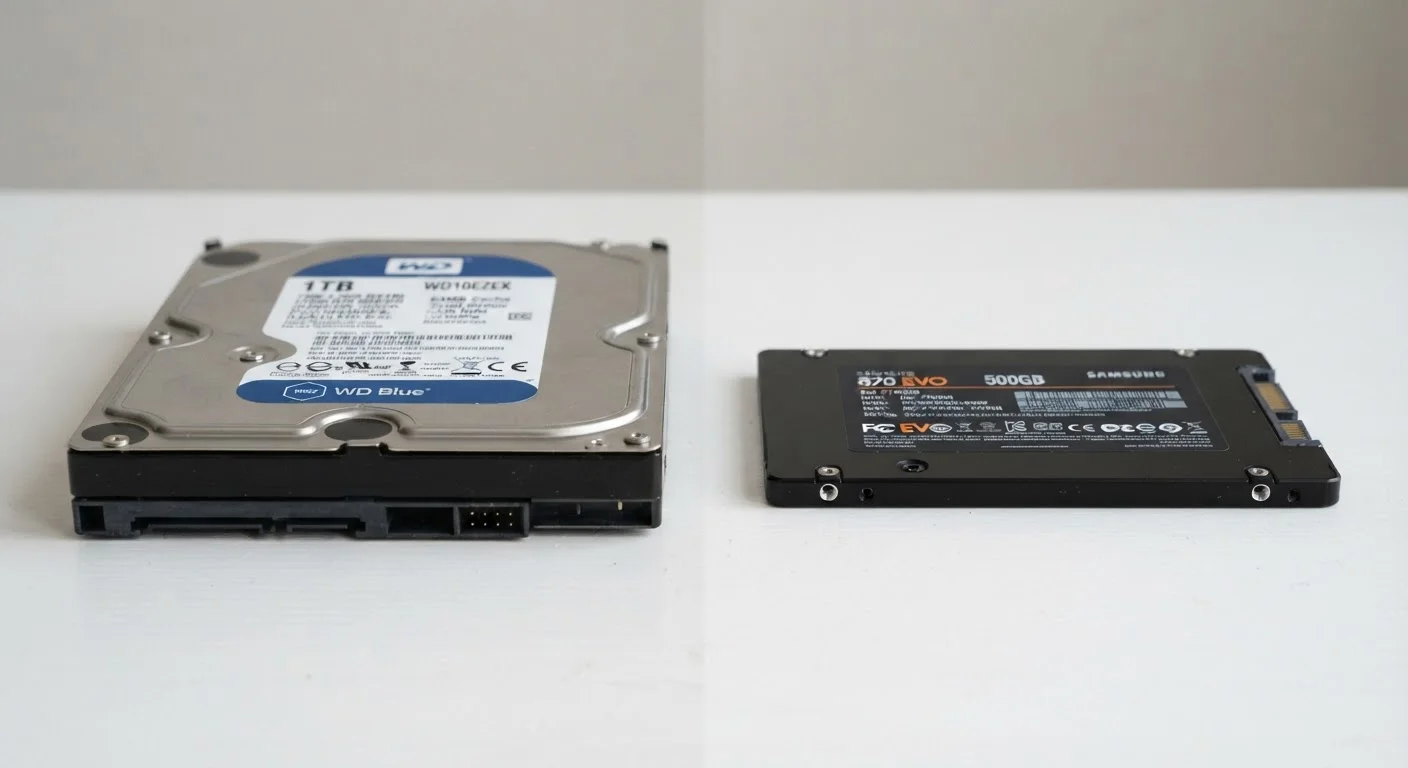
Storage drives — whether solid-state (SSD) or traditional spinning hard drives (HDD) — perform worse as they fill up. As a general rule, keeping at least 15–20% of your drive free gives the system room to manage files efficiently. If you're unsure which type of drive your laptop uses, our guide on SSD vs. HDD differences explains how each behaves in real use.
Software bloat is equally damaging. Programs that launch automatically at startup consume memory and processor cycles before you've opened a single tab. On Windows, the Task Manager's Startup tab lets you disable programs you don't need running immediately. On a Mac, System Settings > General > Login Items serves the same purpose.
Operating system updates often include stability and performance improvements — not just security patches. Skipping them for months can leave your system running on inefficient older code.
Use your laptop on hard, flat surfaces to maintain airflow.
Soft surfaces like couches and beds block the intake and exhaust vents, trapping heat inside the chassis. Sustained high temperatures accelerate wear on the processor, battery, and storage drive simultaneously.
Clean exhaust vents with compressed air every three to six months.
Dust accumulates on internal fans and heatsinks, acting as insulation that prevents heat from escaping. This leads to thermal throttling — the processor slowing itself to avoid damage — which users perceive as general sluggishness.
Keep at least 15–20% of your storage drive free at all times.
Operating systems and applications use free space as a working buffer for temporary files and system processes. A nearly full drive forces constant file juggling, which slows read and write speeds and, on older spinning drives, accelerates mechanical wear.
Audit and disable unnecessary startup programs regularly.
Programs that launch automatically consume memory and CPU time from the moment you log in, making the system feel slow even before you open anything. Reducing startup load speeds up boot times and frees resources for the apps you actually use.
Enable your laptop's built-in battery health or charge-limiting feature.
Lithium-ion batteries degrade faster when repeatedly charged to 100% and drained to near 0%. Charge-limiting features keep the battery in a less stressed range, slowing the long-term capacity loss that eventually makes a battery last only an hour.
Battery Care and Long-Term Health
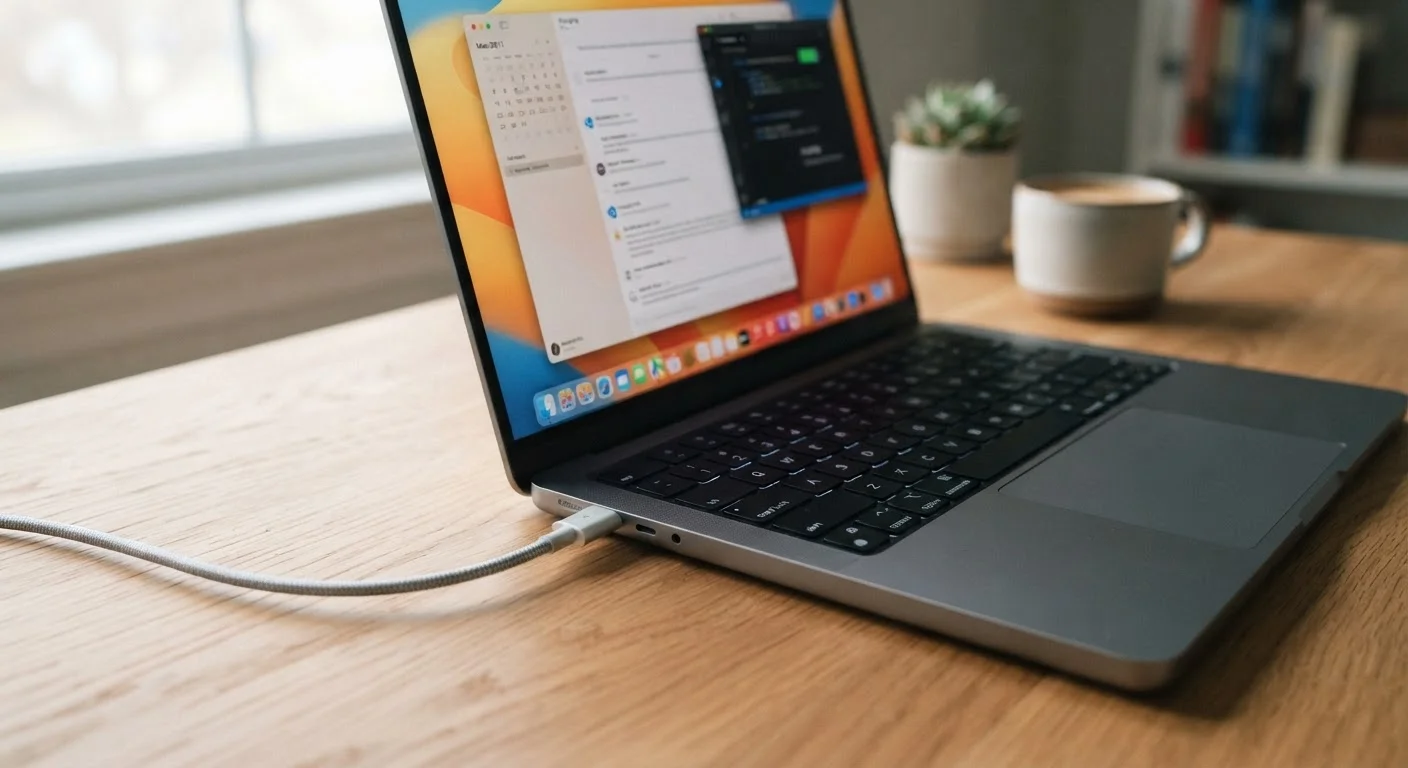
Laptop batteries are consumables — they lose capacity with every charge cycle. But how you charge has a measurable effect on how quickly that decline happens. Lithium-ion batteries, which power virtually every modern laptop, experience less stress when kept between roughly 20% and 80% charge rather than cycled from 0% to 100% repeatedly.
Many laptops now include a battery health or charge-limit setting in their power management software. Enabling this — often called something like "optimized battery charging" or "conservation mode" — can slow capacity degradation meaningfully over time. For a deeper look at the science behind this, see our article on common laptop battery myths.
Heat compounds battery wear significantly. Avoid leaving a laptop in a hot car or in direct sunlight for extended periods, and don't run demanding tasks on battery power if you can plug in instead.