
What Your Phone Is Actually Collecting
Your smartphone is one of the most data-rich devices you own. Even when you're not actively using it, it can be logging location coordinates, monitoring which apps you open and for how long, recording sensor data from the accelerometer and gyroscope, and syncing that information to cloud servers operated by the phone's manufacturer, your carrier, or third-party app developers.
The main categories of data collected include:
- Location data: GPS, Wi-Fi network proximity, and cell tower triangulation can pinpoint your position continuously. Many apps request location access even when the feature adds little obvious value to the service.
- Usage and behavioral data: Screen-on time, app launch frequency, search queries, and typing patterns are commonly logged to personalize ads and improve services.
- Contacts, calendar, and communications: Apps that request access to your contacts or messages can read that content unless you deny or restrict the permission.
- Device identifiers: Advertising IDs, hardware identifiers, and IP addresses allow ad networks to track you across apps and websites.
- Health and sensor data: Motion sensors, microphones, and cameras can be accessed by apps with the relevant permissions granted.
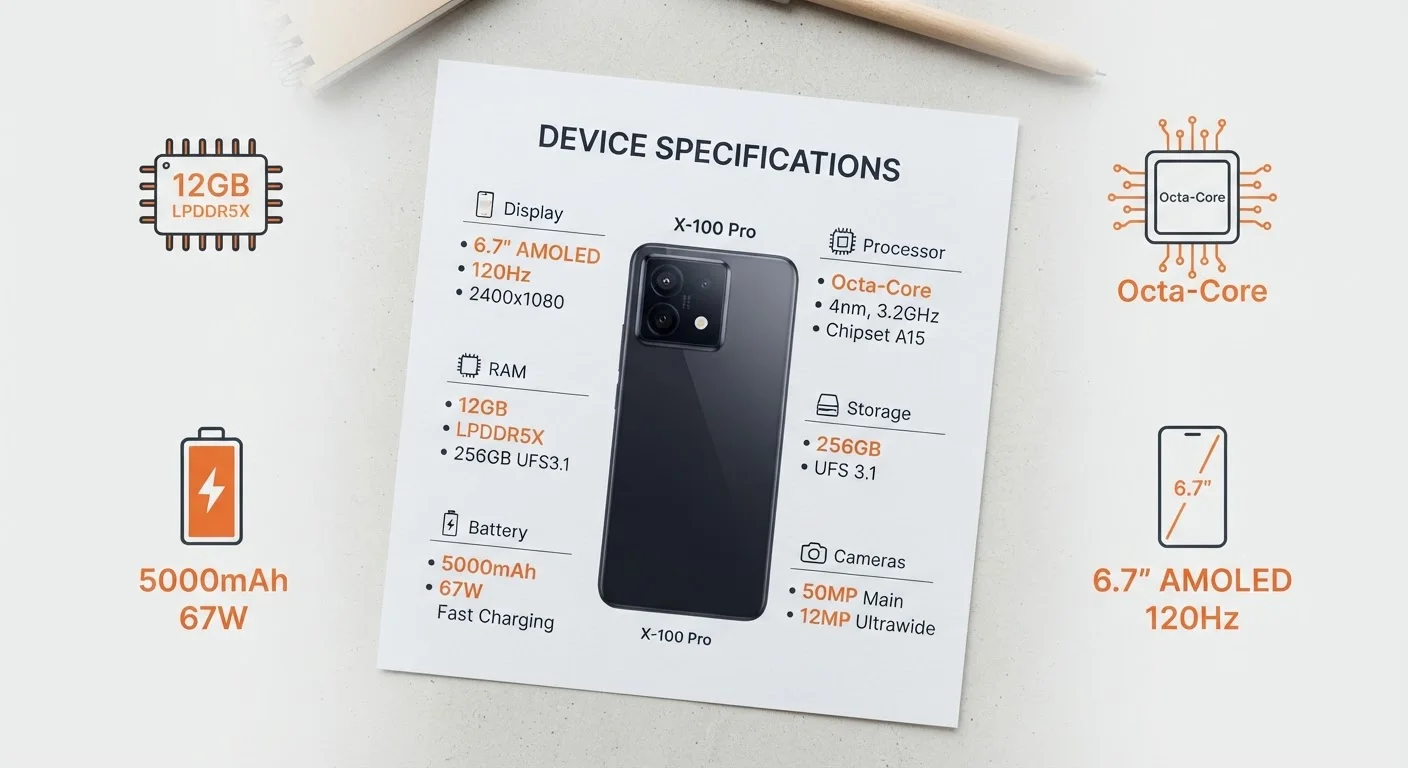
Understanding what's being collected is the first step toward limiting it. For a broader look at what the specs and systems inside your phone actually do, see our guide to smartphone specs.
Best Practices for Limiting Data Collection
You don't need advanced technical skills to meaningfully reduce your phone's data footprint. The following practices apply to most modern Android and iOS devices.
Audit and tighten app permissions regularly
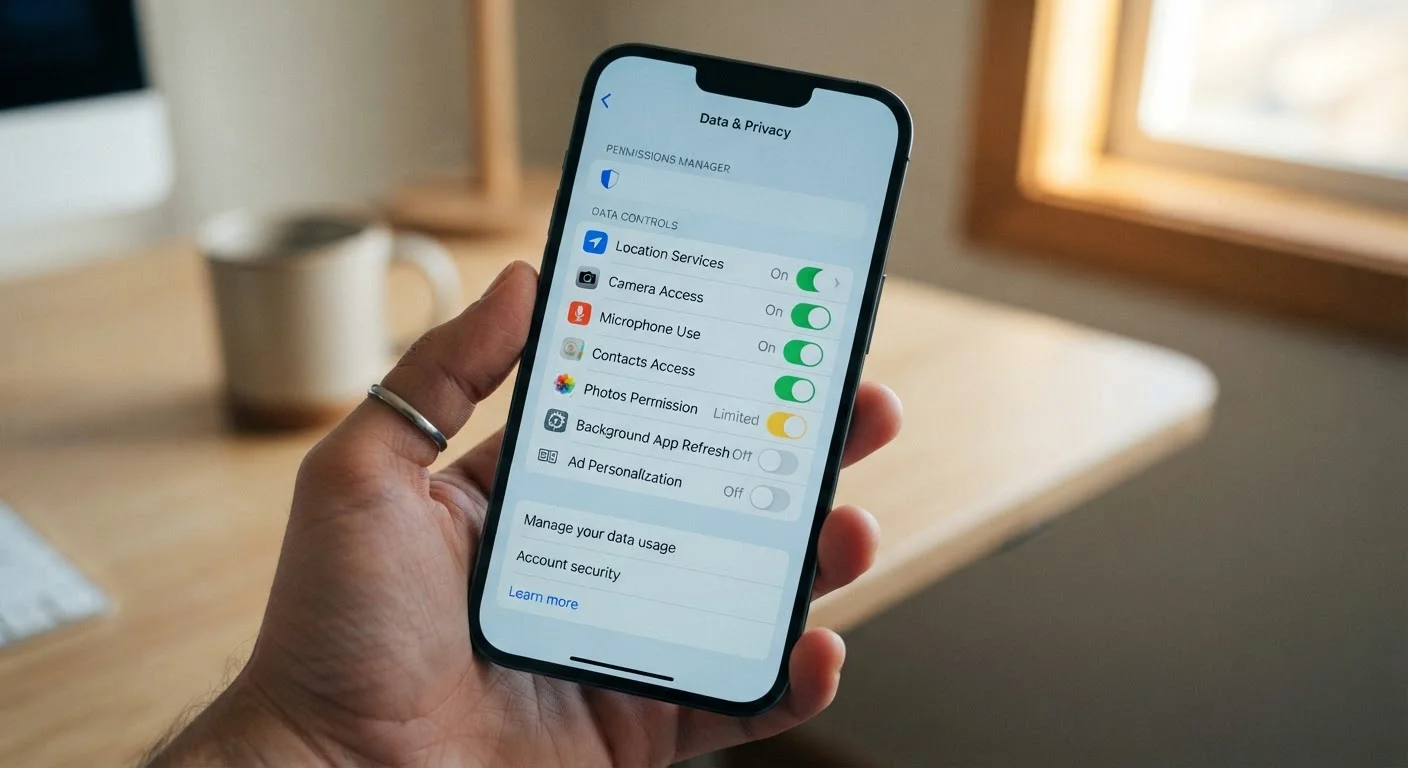
Apps frequently request more access than they need to function. Permissions granted during installation are rarely revisited, allowing ongoing collection long after you've forgotten about them. Reviewing permissions every few months closes those gaps.
Set location access to 'While Using' rather than 'Always'
Granting persistent location access lets apps log your movements around the clock, even in the background. Restricting to 'While Using' limits tracking to moments when you've actively opened the app.
Reset or opt out of your device's advertising ID
Advertising identifiers allow ad networks to build profiles linking your behavior across many apps. Resetting this ID periodically disrupts that profile, and opting out entirely removes a significant tracking mechanism.
Disable background app refresh for apps that don't need it
Background refresh allows apps to update content and send data even when you're not using them, creating continuous data transmission. Turning it off for non-essential apps reduces both data collection and battery drain.
Review privacy dashboards built into your operating system
Both Android and iOS include privacy dashboards that log recent permission usage. These give you a clear picture of which apps have actually accessed sensitive resources, not just which ones could.
Keep your operating system updated
Security updates patch known vulnerabilities that could allow unauthorized data access or malware. Running an outdated OS leaves known attack paths open, increasing the risk that data on your device is exposed without your knowledge.
One often-overlooked concern is what happens when a phone ages out of software support. Devices that no longer receive security patches become increasingly vulnerable to data exposure — learn more in our article on what happens when your phone stops getting security updates.
Quick Actions You Can Take Right Now
If you want to improve your privacy posture today without spending hours in settings menus, these targeted steps deliver real results quickly.
Privacy habits that work well on phones extend to other connected devices too. Our guide on keeping smart home devices secure covers similar principles for the rest of your household network.