
Why Your Router's Location Matters More Than You Think
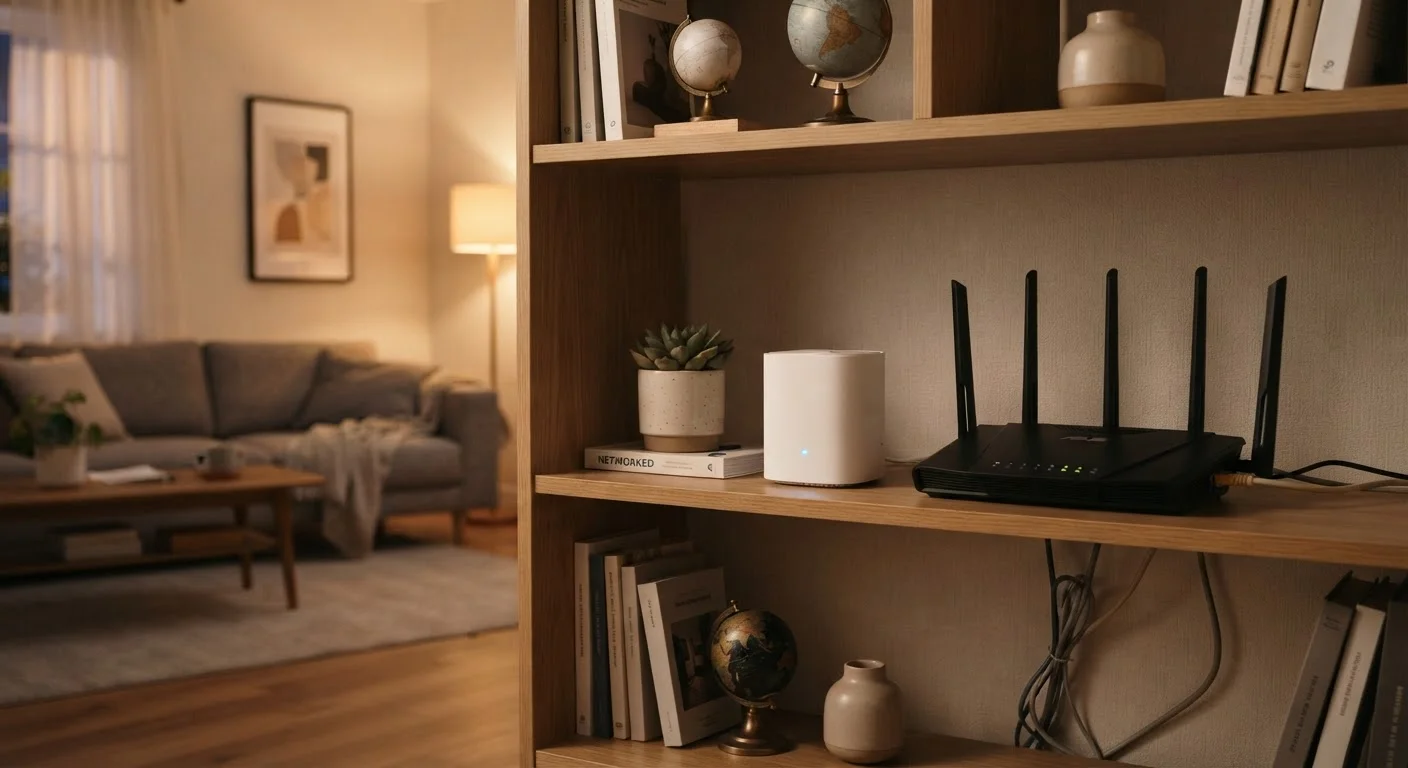
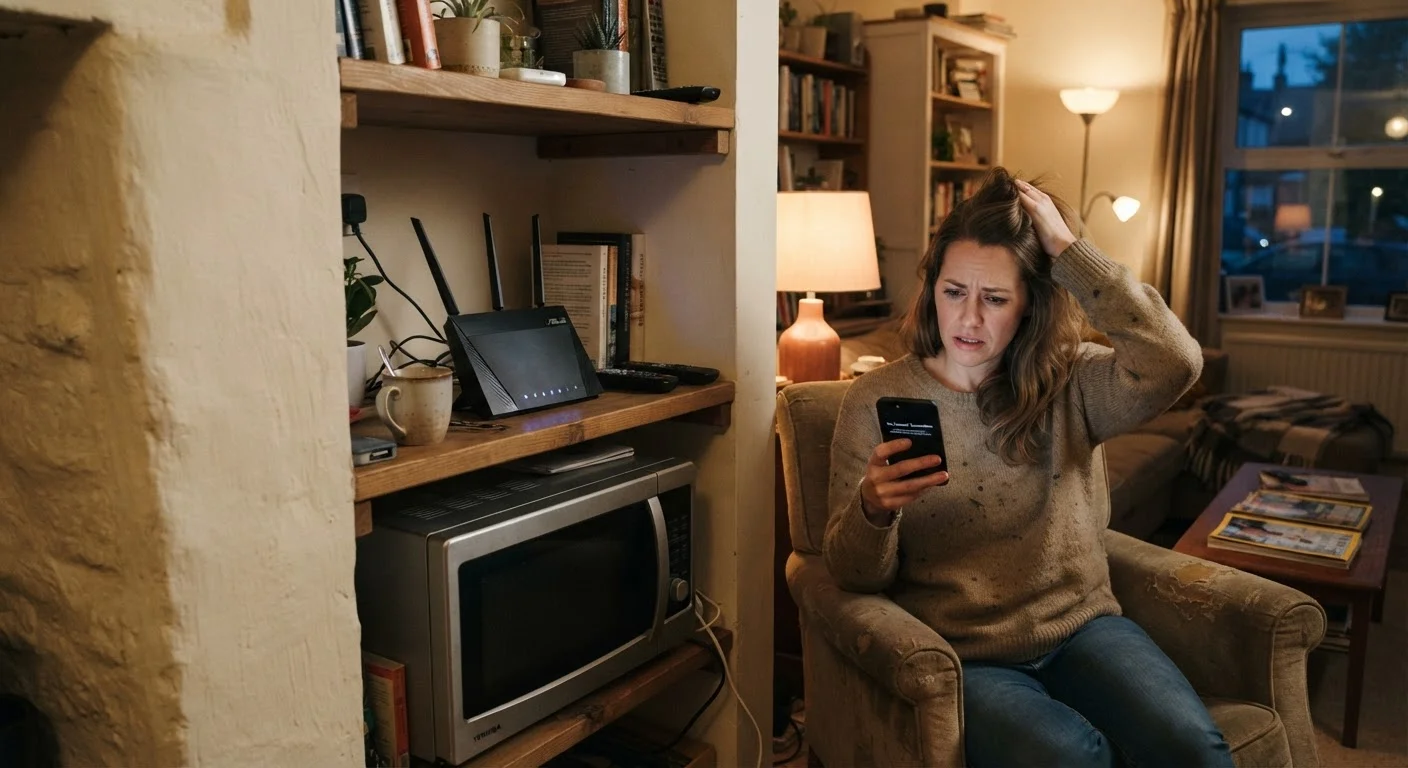
Most households set up a router wherever the cable outlet happens to land — often a corner cabinet, a closet shelf, or behind a television. That convenience comes at a real cost. Wi-Fi signals radiate outward in all directions, and every wall, floor, and large object the signal passes through weakens it. Dense materials like brick, concrete, and even water-filled fish tanks absorb radio waves particularly aggressively.
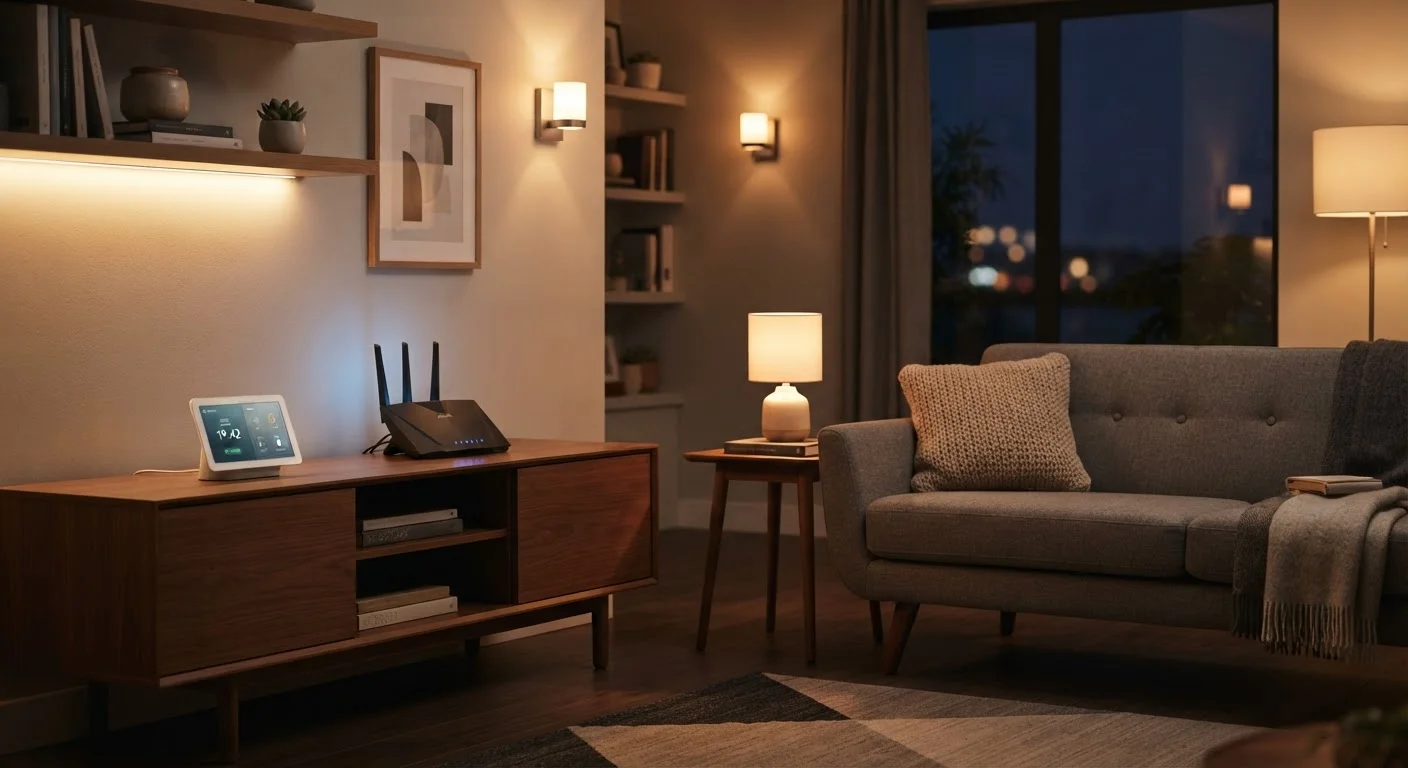
Placing your router in a central, elevated location — ideally in the open, away from metal objects and appliances — gives the signal the best chance of reaching every room evenly. If your home's layout makes that difficult, it's worth reading about mesh systems vs. range extenders to understand options for spreading coverage more deliberately.
Common Mistakes That Quietly Throttle Your Wi-Fi
The slowdowns most people blame on their internet provider are often caused by avoidable errors inside the home. Understanding what these mistakes are — and why they're so easy to overlook — is the first step toward a noticeably faster network.
Placing the router in an enclosed cabinet or on the floor.
Why it happens: Setup usually follows wherever the coaxial or ethernet cable is installed, which is rarely an optimal spot for signal distribution.
Never restarting the router, allowing memory and connection tables to bloat over time.
Why it happens: Routers feel like infrastructure — set it and forget it — so most people never think to restart one unless the internet completely stops working.
Running outdated router firmware for months or years.
Why it happens: Firmware updates don't announce themselves the way phone updates do, and most users never log into the router's admin panel after initial setup.
Letting every device default to the 2.4 GHz band regardless of location or use.
Why it happens: Devices connect to whichever signal is strongest or was connected to first, and users rarely override those defaults.
Ignoring the number of devices connected to the network simultaneously.
Why it happens: Each new smart device added to a home feels minor in isolation, but the cumulative load on the router is rarely considered.
Band Selection and Channel Congestion: The Hidden Bottlenecks
Modern routers broadcast on two frequency bands: 2.4 GHz and 5 GHz. The 2.4 GHz band travels farther and penetrates walls more easily but is shared with microwaves, baby monitors, Bluetooth devices, and the routers of every nearby household. That congestion adds up fast in apartments or densely built neighborhoods.
The 5 GHz band offers significantly faster speeds at shorter distances and typically operates in a less crowded part of the spectrum. For devices that stay close to the router — a streaming TV, a gaming console, a desktop computer — connecting to 5 GHz rather than letting the device default to 2.4 GHz can produce a noticeable improvement.
2.4 GHz
Band shared with microwaves and Bluetooth
The 2.4 GHz band is used by a wide range of household devices and neighboring routers, making channel congestion a common performance issue in populated areas.
~30+
Average connected devices per U.S. household
According to Deloitte's Digital Media Trends research, the average American household has steadily grown its count of connected devices, placing increasing demands on home routers.
Channel overlap is a related problem. Within each band, routers communicate on specific channels, and when neighboring routers cluster on the same channels, interference builds. Most routers offer an "Auto" channel selection setting, but manually choosing a less congested channel — using a free Wi-Fi analyzer app to see what nearby networks are using — can reduce interference meaningfully. This is one of the more technical fixes, but it requires no new hardware.
For households considering whether a router upgrade might address persistent speed issues, our overview of Wi-Fi 6 vs. Wi-Fi 5 explains what the latest standard actually delivers in everyday home conditions — and whether the difference is meaningful for your setup.
Connected Device Overload and Security Blind Spots
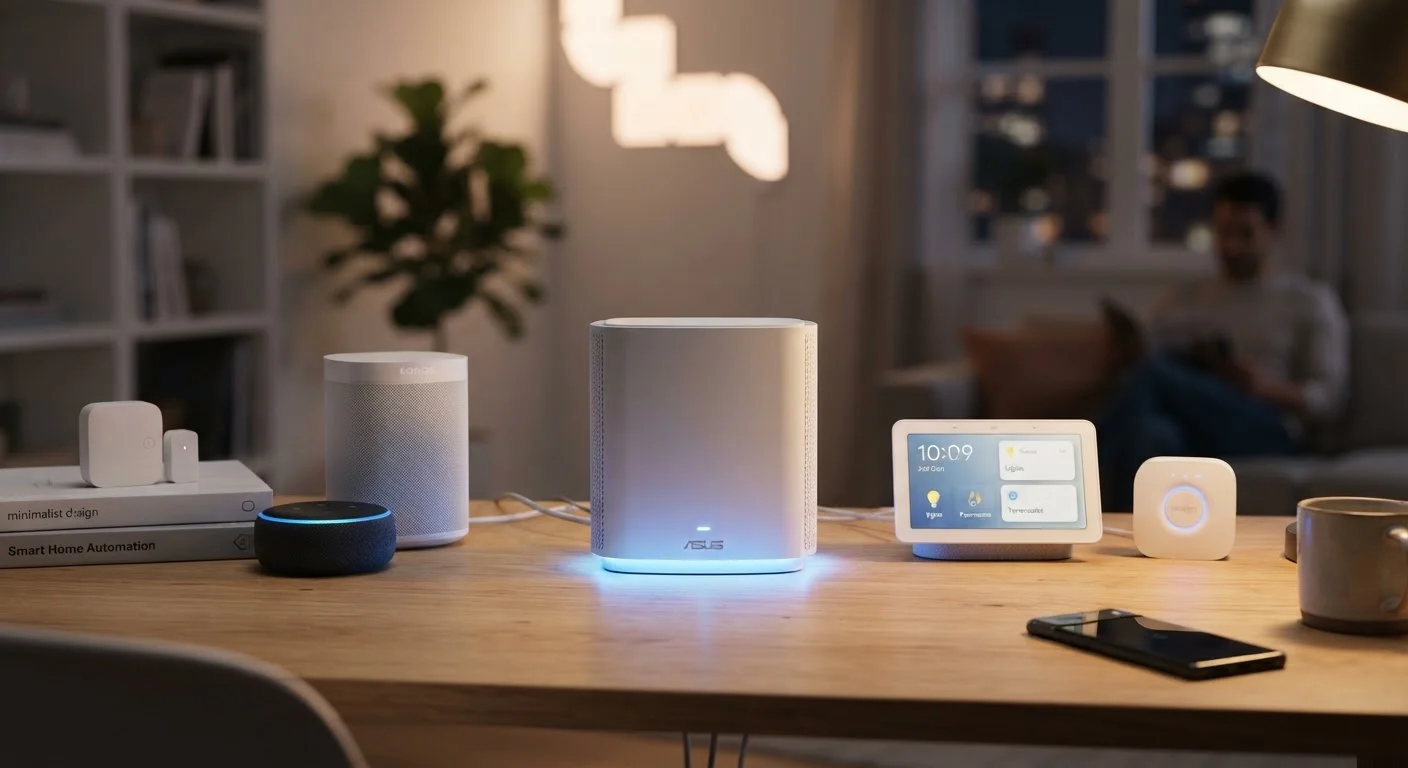
Every device connected to your network consumes a share of available bandwidth — even when it appears idle. Smart home gadgets, older smartphones, laptops running background updates, and streaming devices can collectively place significant load on a router that was never designed to manage dozens of simultaneous connections.
Periodically reviewing your router's connected device list (accessible through its admin interface, usually at 192.168.1.1 or 192.168.0.1 in a browser) lets you identify devices you don't recognize. Unfamiliar connections are occasionally signs of unauthorized access, which affects both performance and privacy. Building basic smart home security habits helps ensure your network's resources stay with your household.
Unauthorized Devices Drain More Than Bandwidth
If your router's device list shows connections you don't recognize, someone outside your household may be using your network. This reduces available bandwidth for your own devices and introduces potential privacy and security risks. Change your Wi-Fi password immediately if you spot unfamiliar devices, and consider enabling WPA3 encryption if your router supports it.
Finally, router firmware — the internal software that controls how the device operates — should be updated regularly. Manufacturers release firmware patches to fix bugs, improve stability, and sometimes boost performance. Many routers can be set to update automatically, but it's worth confirming that feature is enabled in the router's admin settings.